
With the CLI tool, you can automatically download sales and purchase invoices from your account (or multiple accounts) and save them locally on your computer or server. In this guide, we explain step by step how to set up and automate a download scenario.
Step-by-step guide
1. Overview of available scenario commands
We start by viewing all available scenarios within the CLI. Open a Command Prompt.
ef scenarios
This command displays an overview of all scenarios you can use, including the download scenario (dl), which we will configure further below.
2. Initialize the download scenario
Now we create a new download scenario.
ef scenarios dl
This prepares the download scenario, but it is not fully configured yet. In the next step, we will configure it.
3. Configure the scenario
To determine which accounts, folders, and files will be used, we start the configuration.
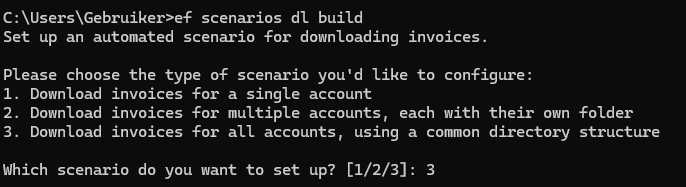
ef scenarios dl build
If you are logged in through the accountant portal, you will now see three options:
Single account – download for one specific account
Multiple accounts – each account in a separate folder
All accounts – all accounts in one structured folder structure
Tip:
Do you work with many client files? Then option 3 is usually the clearest choice.
If you use a regular (non-accountant) account, option 1 is applied automatically and you do not need to choose anything here.
4. File choice for sales invoices
Next, choose which type of file you want to download for sales invoices:
UBL
PDF
UBL + PDF
Do not download
Enter the number of your choice, for example: 1
5. File choice for purchase invoices
Then make the same choice for purchase invoices:
Original file
PDF
UBL + PDF
Do not download
Again, simply enter the number of your preferred option, for example: 1

6. Set the destination folders
First, create a folder on your C: drive, for example: Companies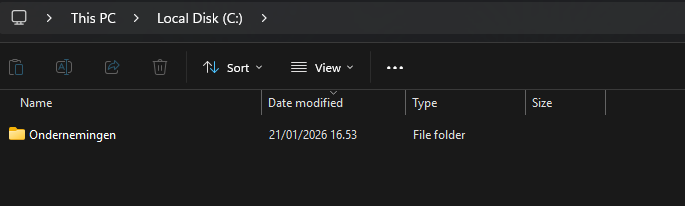
Now specify where the invoices should be stored on your computer.
- Sales invoices: C:\Companies\{companyId}\sales
- Purchase invoices: C:\Companies\{companyId}\purchases
The {companyId} variable ensures that invoices are automatically grouped per company.
7. From which date should invoices be downloaded?
You can specify the date from which invoices may be retrieved.
Date format: YYYY-MM-DD
Example: 2026-01-01
Useful when you only want to download recent invoices and skip older documents.
8. Run the scenario
Is everything configured correctly? Then you can run the scenario immediately.
ef scenarios dl run
The CLI will now automatically download the selected invoices according to your settings.
Important to know is that invoices can only be downloaded once.
Once an invoice has been retrieved, it automatically receives the status “Sent to accounting”. This indicates that the invoice has already been forwarded and prevents the same invoice from being processed multiple times.
9. Schedule the scenario automatically
Do you want to fully automate this process? Then you can schedule the scenario.
ef scenarios dl schedule
You can now choose to download daily or hourly, and enter the desired time.
From then on, everything runs automatically without manual intervention.
10. Stop the schedule
Do you want to stop the automatic schedule later?
ef scenarios dl unschedule
The scenario will continue to exist, but it will no longer run automatically.
Need help?
Do you have questions about the CLI, the scenarios, or the configuration?
Our support team will be happy to help you at support@eenvoudigfactureren.be