
Downloads
Download the correct version for your operating system:
- Windows: https://eenvoudigfactureren.be/downloads/ef_windows_amd64.zip
- Linux: https://eenvoudigfactureren.be/downloads/ef_linux_amd64.zip
- Mac (Apple Silicon): https://eenvoudigfactureren.be/downloads/ef_darwin_arm64.zip
- Mac (Intel): https://eenvoudigfactureren.be/downloads/ef_darwin_amd64.zip
Getting Started
1. Place the file in a permanent location
Extract the ZIP file and place the ef.exe file in an easily accessible location, for example directly on your C: drive. Create a new folder called Apps.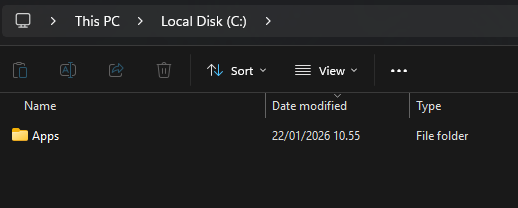
The path should look like this: C:\Apps\ef.exe 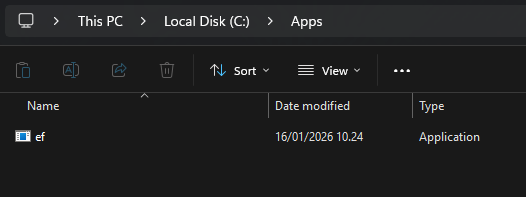
2. Add the folder to the environment variables
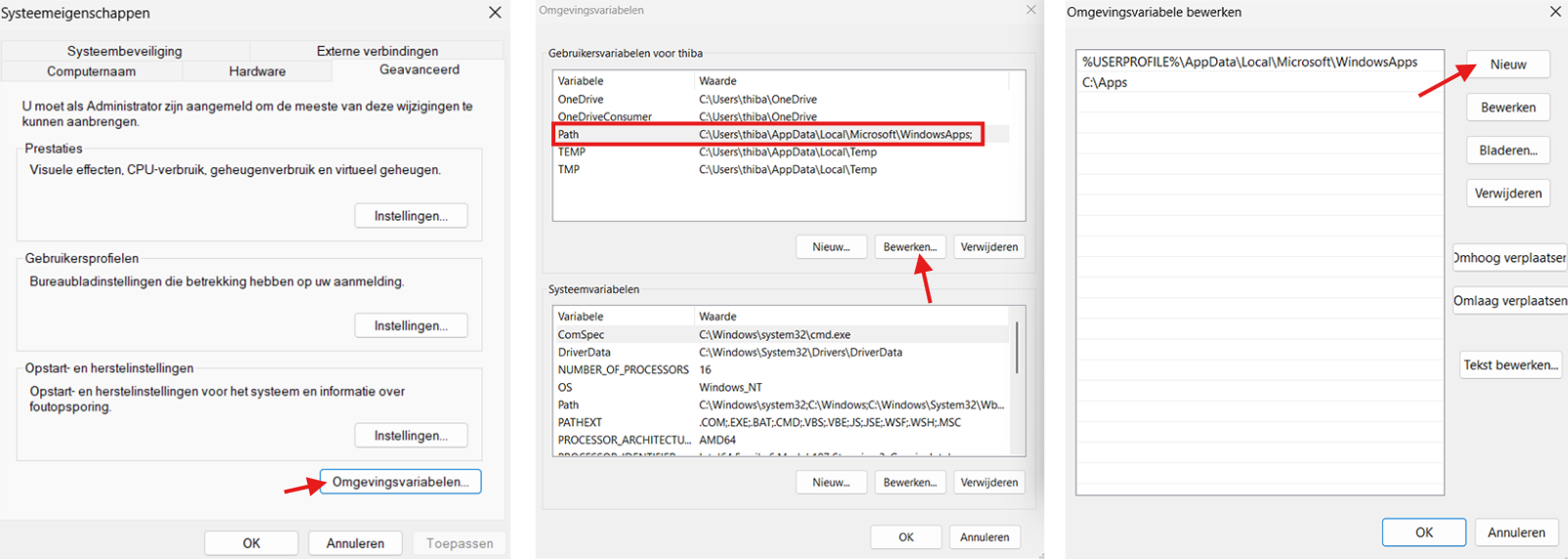
Add the folder to your %PATH% variable via:
Advanced System Settings > Environment Variables > Path > Edit > New
- Enter: C:\Apps
3. Open the Command Prompt
Click the Windows search bar.
Type cmd and press Enter to open the Command Prompt.
4. Test the connection
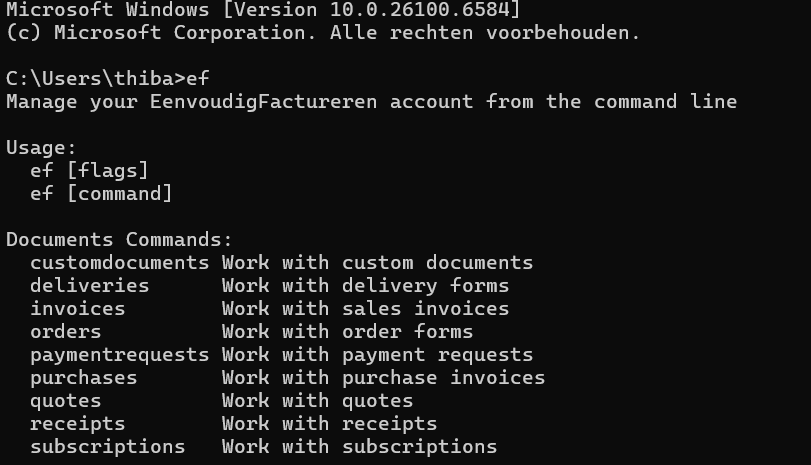
Check whether the CLI is installed correctly by running:
ef
5. Connect your account
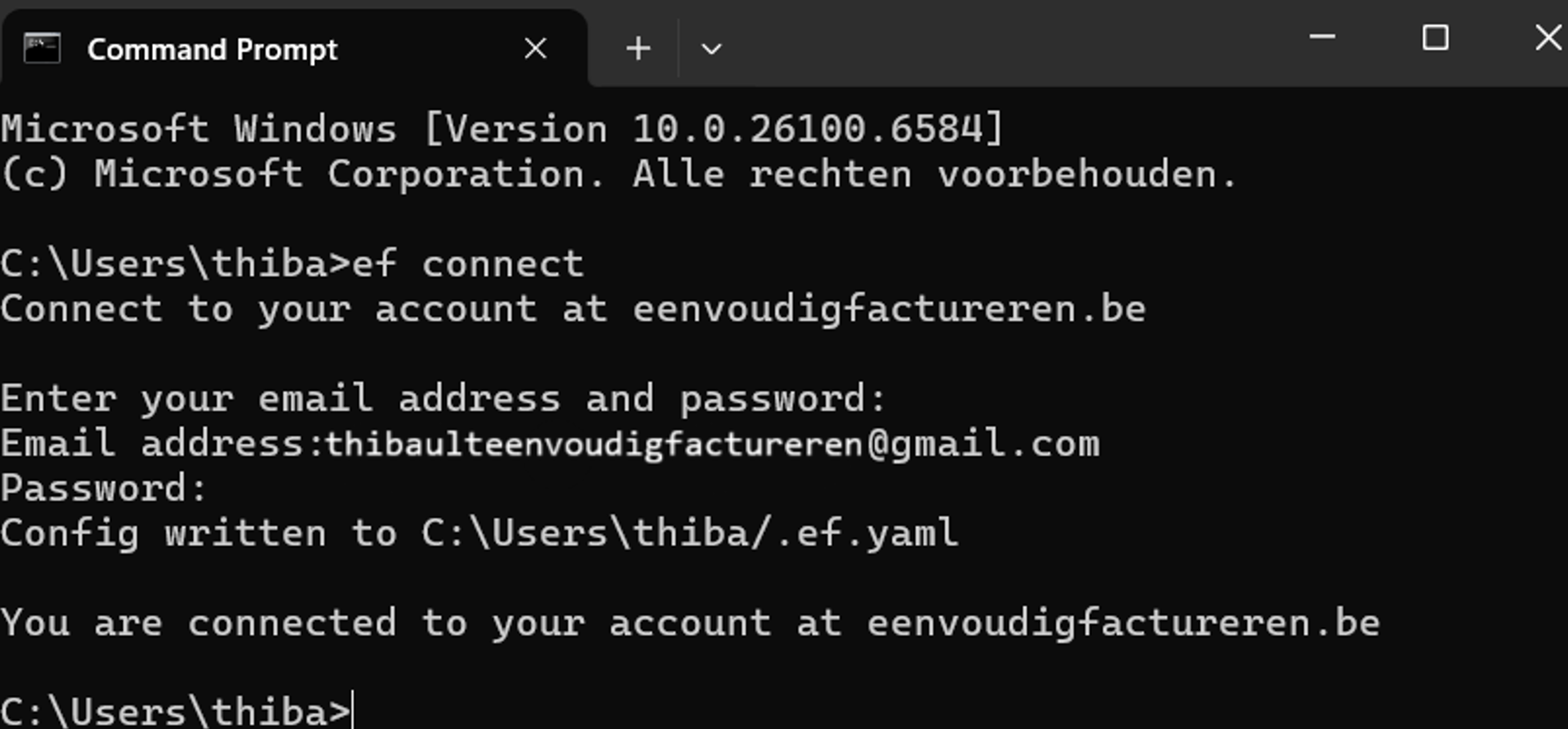
Connect to your EenvoudigFactureren account:
ef connect
Then enter your email address and password.
Your password will not be displayed while typing, but it is still being entered.
6. Don't use EenvoudigFactureren?
If you use another domain, such as app.simplybooks.be, connect using:
ef connect --domain=URL

Example:
ef connect --domain=app.simplybooks.be
7. Multiple accounts?
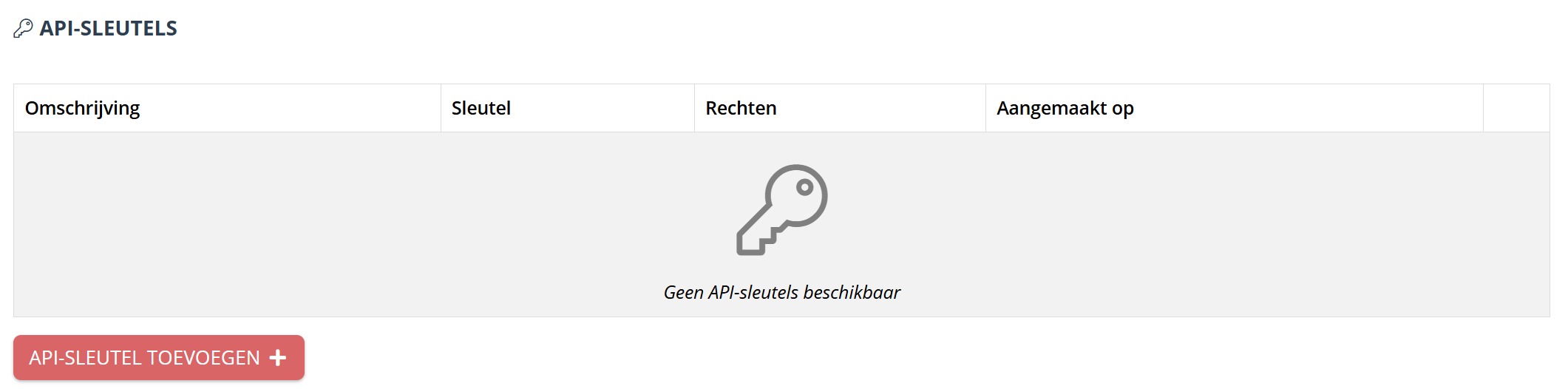
If you have multiple accounts using the same email address, you'll need to create a separate connection for each account using its corresponding API key. You can generate one via Access Management > Add API Key.
When connecting, specify the API key you created using the following command:
ef connect --apikey=YourAPIKey
List all existing profiles:
ef profiles ls
Switch to another profile:
ef profiles use NAME
8. You're ready to go!
Your account is now connected and you're ready to use the CLI commands.